Before you start
Have the following information ready:
- Job title and location
- Salary or salary range
- Employment type (entry level, apprenticeship, graduate)
- Closing date
- Job description
- Responsibilities and requirements
- Application link (if required)
- Candidate Persona
Step 1: Sign in to the employer platform
Log in to ur urfuture employer account.
Select Create a Post on the left. Alternatively, you can duplicate a job by going to 'Manage Posts' and selecting the three dots next to the job title, select 'Duplicate Job' then go to your drafts, select the job and 'Edit job'
Step 2: Add the basic job details
Enter the core information candidates need to understand the opportunity.
This will include:
- Job title
- Employer
- Career Category
- Location (you can hide postcode)
- Workplace type, such as onsite, hybrid or remote
- Employment type (apprenticeship, entry level etc)
- Salary (you can select 'competitive')
- Start date
- Closing date
- Hours
- Job owner
Step 3: Select a Persona
Personas define what ‘great’ looks like for this role - traits, skills, interests, and tools that drive the job match score.
This is used to calculate the match score candidates see and the score you’ll use to shortlist.
Create a new persona for this role, or reuse a previously saved one to stay consistent across similar hires and speed things up.
Step 4: Add the job description
Explain what the candidate will do and why the opportunity is worth considering.
Ur description should cover:
- A simple overview of the role
- The main responsibilities
- What a typical day could look like
- Training and development available
- Progression opportunities
- Working hours
- The application process
Write for someone who may be applying for their first job. Do not assume they already understand the role or industry.
Alternatively, you can use Ruby AI to generate you a job description, you can then make edits to make it more personalised to your company.
Finally, pick the benefits from the list provided.
Step 5: Job Workflow
Select whether you want candidates applying on urfuture or via external link.
If they are applying within urfuture, you can add screening questions e.g. 'Do you have a valid UK Driving Licence?'. You can also make it mandatory for the candidates video to be available (they have the option to film a video when applying), if they don't have a video complete, they will be asked to make one if you select this.
Automated messages:
You can select if you want automated messaging to go out when an application has been received, accepted or rejected. You can edit these to say what you would like.
Knockout Questions:
You can auto-reject applicants who don't meet theses criterias (RTW, maximum distance of the job) candidates are automatically rejected within 24 hours.
Select ur interview stages so candidates can understand the process.
Automation:
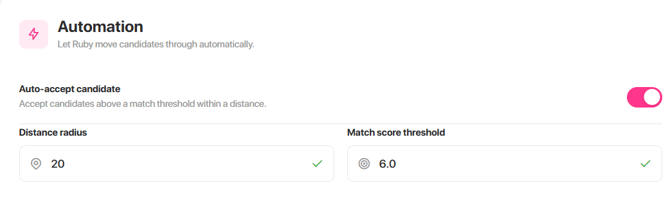
Auto-accept - accept all candidates above a match threshold within a distance, for example, all candidates above a 6 match within a 20 mile radius from the role.
Send matched profiles to an email - all profiles scoring above your threshold can be sent to a chosen inbox (colleague, employer)
Step 6: Customise Job
This is where you can personalise the job by adding videos and job swipe photos.
Video: You can film a video in urfuture, upload a video from ur computer or paste a YouTube link from ur companies YouTube channel
Job Swipe Photo: You can uploade ur own image, use company images that are saved at company level or select an image from our job swipe library
Step 7: Publish Job
Finally post ur job and start screening candidates!
How does the auto reject work?
You can select auto reject on the 'job workflow' page when posting a job.
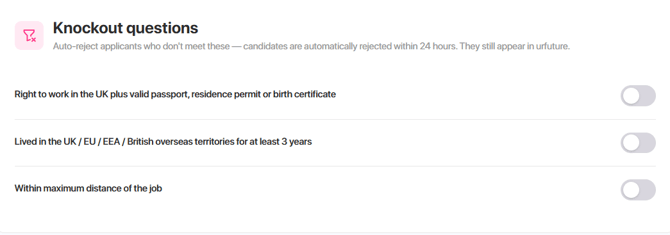
This allows the candidates to apply, however a day after the application is made, they will receive a rejection email. This gives you 24 hours to look through the candidates and have any conversations in case of relocation etc.
Can I auto accept?
Yes! When posting a job, go to the 'Job Workflow' page, and at the bottom you will see 'Automation Settings'. You can input a distance radius and a match score threshold. If you select this, all candidates within this criteria will be automatically accepted.
Do jobs close once the closing date has passed?
No, jobs will pause when they have past their closing date, this allows you to still screen candidates before they receive any automated messaging letting them know the role has closed. To close a role you need to go to 'manage posts' then the three dots next to the job title and 'close job'.
How can I improve my applications?
If you aren't getting relevant applications, we would suggest taking a look at the working traits selected. Try and post the same role with different working traits to see if that improves the quality of applications. If you have any concerns on applications, please contact ur CSM and we can set up a call to discuss new strategies. You can also invite candidates to apply to ur role that you believe are a good match from ur Talent Pool.